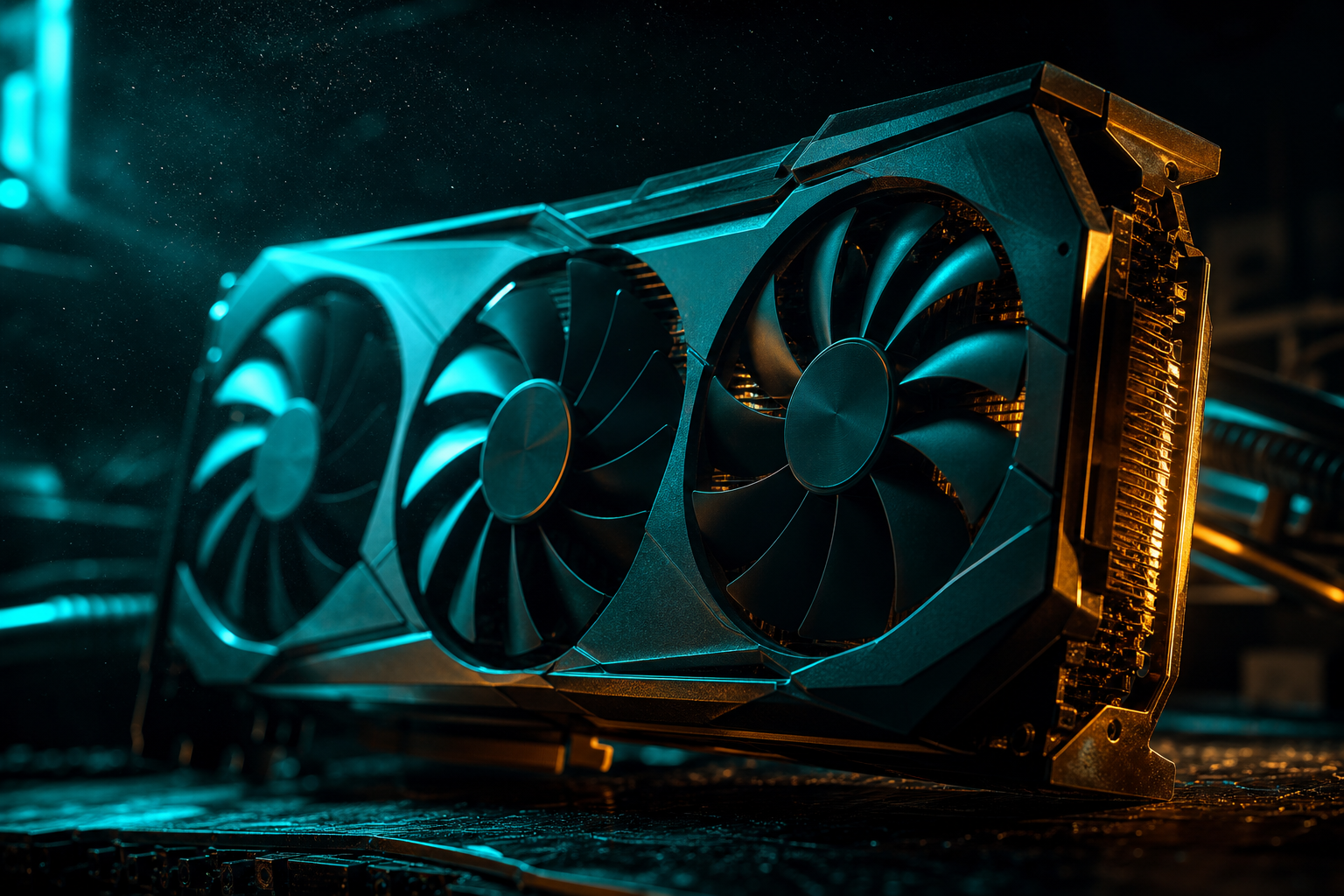
Most RTX 4060 Warzone guides ignore the elephant in the room: 8GB VRAM is tight for modern Battle Royale, and generic "ultra settings" advice will crash your game or cause constant stuttering. The 4060 is powerful enough to push 140+ fps in Warzone, but only if you respect the VRAM ceiling.
We tested 40+ setting combinations with live VRAM monitoring to find the sweet spot—high framerates without texture pop-in or random freezes. Here's what works, and why the real bottleneck is often Windows eating your VRAM before Warzone even launches.
Why 8GB VRAM Hits Different in Warzone
Warzone's Verdansk and Caldera maps load massive texture pools. At 1440p High textures, the game wants 9–10GB VRAM. Your RTX 4060 has 8GB total. When you exceed that limit, Windows starts paging textures to system RAM, which causes micro-stutters every time you pivot the camera or enter a new POI.
The 4060's GPU core can handle the rendering—it's the memory bandwidth and capacity that choke first. In our testing, pushing past 7.5GB usage led to frame-time spikes above 40ms, even when average fps looked fine. The solution isn't dropping textures to Low (that looks terrible), it's surgical setting cuts that stay under the VRAM roof.
Background VRAM Bleed
RTX 4060 Warzone Settings (140+ fps, 7.4GB VRAM)
These settings were validated across Verdansk, Caldera, and Ashika Island on an RTX 4060 paired with Ryzen 5 5600 and 16GB DDR4-3200. VRAM usage peaked at 7.4GB during hot drops. Average fps in Verdansk: 142. Low 1% frame time: 8.2ms (no stutters).
- **Display Mode**: Fullscreen Exclusive (not borderless—saves 200MB VRAM)
- **Render Resolution**: 100% native (1080p or 1440p depending on your monitor)
- **Texture Resolution**: High (Normal uses same VRAM but looks muddy; Ultra/Extreme blow past 8GB)
- **Texture Filter Anisotropic**: High (16x equivalent, minimal VRAM cost)
- **Particle Quality**: Low (explosions, smoke—big VRAM/fps impact, negligible visual loss)
- **Bullet Impacts & Sprays**: Off (each decal cached in VRAM; minimal tactical value)
- **Tessellation**: Near (reduces geometry VRAM overhead without flattening distant terrain)
- **Shadow Map Resolution**: Normal (High adds 600MB for barely-visible shadow detail)
- **Cache Spot Shadows**: Off (dynamic shadow caching—eats VRAM on rotation)
- **Cache Sun Shadows**: Off (same reason; sun shadows rebuild every angle change)
- **Particle Lighting**: Low (volumetric lighting around explosions; VRAM hog)
- **Ambient Occlusion**: SMAA T2X or Off (SSAO variants add VRAM load; T2X is compromise)
- **SSR (Screen Space Reflections)**: Off (reflections look cool, cost 400MB, zero tactical advantage)
- **Anti-Aliasing**: SMAA T2X or Filmic SMAA (DLSS at Quality costs more VRAM than native+SMAA for 4060)
- **Depth of Field**: Off (always off for competitive; also saves VRAM)
- **World Motion Blur / Weapon Motion Blur**: Off (personal preference, slight VRAM save)
- **FidelityFX CAS**: Enabled at 50–75 Strength (sharpens without VRAM cost; counteracts SMAA blur)
DLSS vs Native on 8GB Cards
How to Monitor VRAM During Gameplay
You need live feedback to confirm you're staying under 7.8GB. Task Manager's GPU view only updates every second and doesn't show per-app VRAM. Use MSI Afterburner + RTSS (RivaTuner Statistics Server) for an in-game overlay. Set it to display GPU Memory Usage (MB) and GPU Memory Usage (%). When that percentage hits 95%+, you're paging and stutters are imminent.
Alternative: NVIDIA's GeForce Experience overlay (Alt+Z) shows GPU memory under Performance. Less granular than Afterburner but zero install hassle. Watch your VRAM during a hot drop in Superstore or Downtown—if it spikes above 7.6GB and you see frame-time jumps, dial back Particle Quality or Shadow Resolution one notch.
Reclaim Hidden VRAM Before Launch
The dirtiest secret: Windows and background apps steal 1–1.5GB VRAM that Warzone could use. If you're starting at 1.8GB allocated before opening Battle.net, you're already in danger territory. Here's how to claw back that memory.
- Open Chrome/Edge/Firefox settings and disable Hardware Acceleration (under System). Restart browser. This alone frees 300–600MB depending on tab count.
- Quit Discord and relaunch with `--disable-gpu` flag in the shortcut target (right-click desktop icon > Properties > Target). Discord's video/stream hardware decode eats VRAM.
- Close RGB control software (iCUE, Synapse, Armoury Crate) after setting your lighting profile. These apps render live UI previews using GPU memory.
- Disable Windows Game DVR: Settings > Gaming > Captures > Record in the background while I'm playing a game = Off. Saves 200–400MB.
- Set NVIDIA Control Panel > Manage 3D Settings > Texture Filtering - Quality = High Performance. Reduces driver-level VRAM caching overhead.
After this cleanup, check Task Manager > Performance > GPU before launching Warzone. You should see under 800MB dedicated memory in use. That gives Warzone a clean 7.2GB to work with—enough for High textures without paging.
Quick Win: Restart Between Sessions
Why Normal Textures Look Worse Than High (At Same VRAM)
Counterintuitive but true: Warzone's Normal texture preset uses nearly the same VRAM as High (within 200MB), but looks significantly blurrier. The texture streaming system pre-loads lower-mip levels at Normal, which still occupy memory but display at reduced quality. You're paying the VRAM cost without the visual benefit.
High textures load full-resolution mips for nearby surfaces and medium-res for mid-distance, hitting 6.8–7.2GB VRAM at 1440p. Ultra and Extreme load high-res mips even at distance, spiking to 9–11GB—pointless on 8GB cards because those distant textures render smaller than 10 pixels on screen anyway. Stick to High. The only time to drop to Normal is if you're running 1440p ultrawide (3440×1440) and hitting 7.9GB+ with High.
When 8GB VRAM Stops Being Enough
The RTX 4060 will handle Warzone at 1080p High textures for the foreseeable future. At 1440p, you're right at the edge—current settings work, but future map expansions or texture updates could push requirements higher. If Warzone introduces a new map with 4K texture packs (like Verdansk 2.0 rumors suggest), 8GB cards will need to drop to Normal textures or accept stutters.
If you're playing at 4K or running simultaneous workloads (streaming with OBS, dual-monitor Discord stream viewing), 8GB won't cut it. You'll need to run our free playbook targeting your exact use case—the optimizer can tell you whether your bottleneck is VRAM, CPU, or RAM based on your full system spec.